Accessing REDCap Safe Haven (Internal Users)
Accessing REDCap Safe Haven for the first time
Once you have been granted access to REDCap Safe Haven, you'll receive an email from the CAM:IDE team (redcap@camide.cam.ac.uk) confirming your account is ready to use.
To log into REDCap Safe Haven:
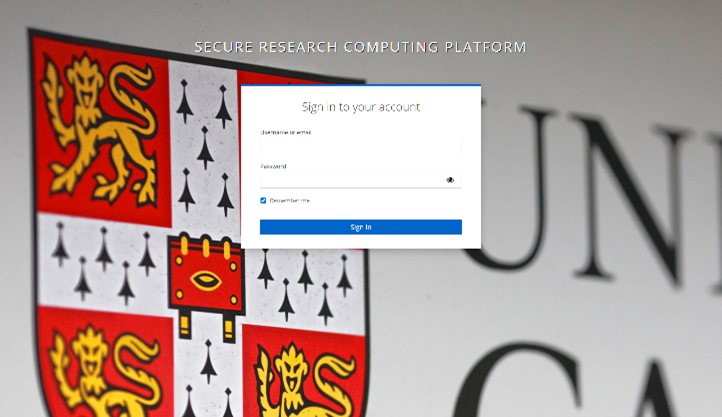
- Go to https://redcap-camide.srcp.hpc.cam.ac.uk/. You should see the REDCap Safe Haven login screen as shown in the image below.
- If you cannot see the login screen, please refer to the FAQ section below.
- Enter your username and password:
- Username: Your username is your CRSid.
- Password: Your Raven password; the same password you use to access all other University systems (including e-mail)
- You’ll then be prompted to set up multi-factor authentication (MFA). A QR code will be displayed for you to scan using an authenticator app on your phone – e.g., Google Authenticator or Microsoft Authenticator.
- Once you’ve registered your device, you’ll be asked to enter a one-time code. The code will appear in your authenticatir app under “Secure Research Computing Platform” and will refresh every 30 seconds.
- Once you’ve logged in, you’ll find your project(s) under “My projects”.
Frequently Asked Questions
Can I log on to REDCap Safe Haven from anywhere?
Yes, you can log into REDCap Safe Haven from anywhere. However, you must be connected to Eduroam in Cambridge or the University of Cambridge VPN.
How can I find out whether my network is approved?
To find out whether your network is approved for access to the Safe Haven, please go to https://redcap-camide.srcp.hpc.cam.ac.uk/. If you see a login screen (as seen in the image below), this means your IP address (a unique number that identifies your network connection on the internet) is approved (“whitelisted”).
If you’re seeing a message that reads “Forbidden – You do not have permission to access this resource” (as shown in the image below), this means that your IP address has not been approved (“whitelisted”) for access to the Safe Haven.
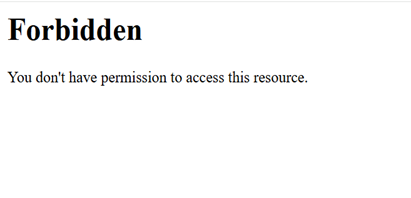
What should I do if I see a “Forbidden” message?
If you’re seeing the “Forbidden” message, make sure you’re connected to the Eduroam network in Cambridge, the University’s wired LAN (Local Area Network), or the University of Cambridge VPN to access the Safe Haven.
Please note that the Eduroam network is not whitelisted across all areas of Cambridge, so access may vary depending on your location.
How do I set up the University of Cambridge VPN?
VPN setup instructions are available on the UIS website.
If you cannot install or connect to the VPN, please contact UIS for support: https://help.uis.cam.ac.uk/.
If UIS are unable to help you, please contact the CAM:IDE help desk at helpdesk@camide.cam.ac.uk.
Please note that the University of Cambridge VPN cannot be installed on NHS devices.
What should I do if I see a “Bad Request” message?
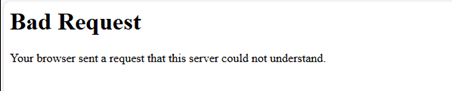
If you’re seeing a message that reads “Bad Request – Your browser sent a request that this server could not understand” (as shown in the image below), please make sure you are using the following URL to access REDCap Safe Haven:
https://redcap-camide.srcp.hpc.cam.ac.uk/
not a bookmarked URL, which may have gone out of date.
If you remain unable to access REDCap Safe Haven, please contact the CAM:IDE helpdesk at helpdesk@camide.cam.ac.uk.
How can I reset my password?
To reset your REDCap Safe Haven password, you will need to reset your University IT/Raven password.
You'll find instructions for resetting your University IT/Raven password on the UIS website to reset it.
Why am I not receiving my one-time code?
Your one-time code will not be sent to you by email or text message. It is only available through your authenticator app.
To find your one-time code, please open the authenticator app you set up when you first logged in – e.g., Microsoft Authenticator or Google Authenticator. Look for an entry labelled “Secure Research Computing Platform”. This will display a six-digit code that refreshes every 30 seconds. This is the code you need to enter when prompted.
Please make sure to check all authenticator apps on your phone (e.g., Google Authenticator, Microsoft Authenticator).
If you cannot see an entry for “Secure Research Computing Platform” in any of your authenticator apps, please contact the CAM:IDE help desk at helpdesk@camide.cam.ac.uk.
For anything not covered on this page, use the Contact Us button at the bottom right of the screen, or email helpdesk@camide.cam.ac.uk.
Last updated on 14/05/2026