Visitor Agreements
What is a Visitor Agreement?
A Visitor Agreement is a legal agreement between:
- the Visitor (the person who needs access),
- the University of Cambridge, and
- the Visitor’s employer or home institution (if applicable)
It sets out what access the Visitor is being given, what they can do with that access, and what responsibilities they have while using University systems.
A Digital Visitor Agreement is used when someone requires only remote access to University IT systems or digital tools — for example, a University email account, Moodle, or REDCap — and does not need on-site access or use of physical facilities.
Do I require a Digital Visitor Agreement?
If you are not currently employed or studying at the University of Cambridge, you will need a Digital Visitor Agreement in place before you can be granted access to certain CAM:IDE systems. Currently, this applies to REDCap but not to XNAT.
Completing your Digital Visitor Agreement
Step 1: Completing your visitor form
You will receive an email informing you that a Digital Visitor Agreement (DVA) has been initiated on your behalf.
To complete your visitor form, follow the link in the email and enter your email address along with the access code provided.
You’ll be asked to provide:
- Full name, title, date of birth, and home address
- Institution name and address
- Details for a named contact at your institution (e.g., line manager, local principal investigator, lead tutor, supervisor)
You’ll also need to confirm that you’ve completed cyber security and data protection training. This can be either:
- The MRC Confidentiality and Data Protection in Health Research
- The NHS Data Security Awareness e-learning module
- This training may go by different names in different NHS Trusts. Any required staff training on data protection and cyber security is acceptable.
You'll also be asked to confirm the date you completed the training.
Step 2: Signing and Returning Your DVA
Once we have reviewed your details, we will generate a Digital Visitor Agreement (DVA) and send it to you by email.
You will need to: * Sign and date the agreement * Get your DVA signed by an appropriate institutional contact (e.g., line manager, supervisor, principal investigator).
By signing the DVA, please note that you are agreeing to the Safe Haven terms and conditions.
Once signed, please return your agreement to the CAM:IDE helpdesk at helpdesk@camide.cam.ac.uk
Frequently Asked Questions
Do I have to provide my home address?
No. If you are not comfortable sharing your home address, you can enter your work address instead.
Note that the field is currently required, so you will still need to provide an address. However, this does not need to be your home address.
Do I have to provide my date of birth?
Yes. We cannot process your visitor agreement unless we have your date of birth.
Why do you need my date of birth?
We ask for your date of birth because it is required to set up a University of Cambridge IT account (including a CRSid). Your CRSid is the username you will use to log in to University systems such as REDCap.
The University’s IT system uses a combination of full name and date of birth to uniquely identify users. This prevents two people with the same name being issued the same account, and avoids duplicate accounts if someone’s name changes in future.
Without your date of birth, we are unable to generate your account or provide access to REDCap.
If you have questions about this requirement, UIS can provide further information: https://help.uis.cam.ac.uk/contact-us.
What should I do if I made an error when filling in my visitor form?
If you made an error while filling in your visitor form, please contact the CAM:IDE helpdesk at helpdesk@camide.cam.ac.uk.
In most cases, we can update the incorrect information for you or reopen the form so you can make the changes yourself.
Where is my personal data stored and who has access to it?
All personal data you provide as part of the onboarding process is stored on a secure University of Cambridge server.
Access to this information is strictly limited to authorised CAM:IDE staff, the Department of Psychiatry HR team, and the HR team of the department under which the study is being run. No other parties have access to your information, and it is not shared outside the University.
Your data is handled in line with the University's data protection policy.
Why do I need to confirm that my data protection training is up to date?
It is a requirement of the ISO27001 certification that all users comply with the Safe Haven terms and conditions and have up-to-date data protection training.
What is ISO/IEC 27001, and why does it matter?
ISO/IEC 27001 is an international standard for managing information security. It ensures that organisations have strict policies, processes, and controls in place to protect sensitive data. Our Safe Haven platform is certified to this standard, meaning we follow recognised best practices for keeping research data secure. Find out more about ISO/IEC 27001 here.
Will I be asked to provide proof of training?
We do not routinely ask for proof of training. However, if your access or activity is subject to audit or review, you may be asked to provide evidence that your cyber security and data protection training was completed on the day you claim to have completed it.
What should I do if my retrieval code isn't code isn't working?
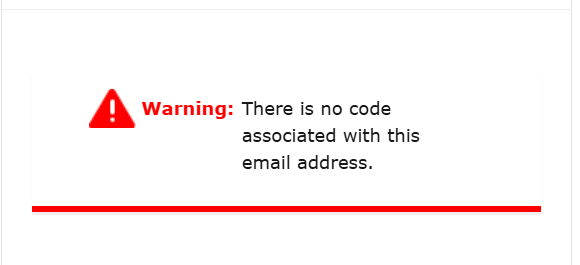
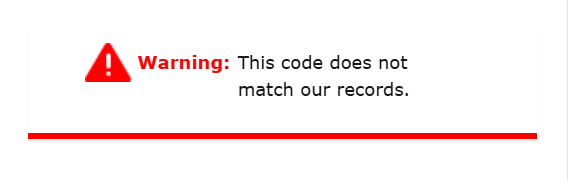
If you are receiving an "This code does not match our records." or "There is no code associated with this email address." error message (as seen in the screenshots below) when attempting to retrieve your visitor agreement, please contact the CAM:IDE helpdesk at helpdesk@camide.cam.ac.uk.
In your message, please let us know what code and email address you're using.
For anything not covered on this page, use the Contact Us button at the bottom right of the screen, or email helpdesk@camide.cam.ac.uk.
Last updated on 12/05/2026